![Share-council-wit.svg]](https://sharecouncil.co/hubfs/Website/Share-council-wit.svg)
To send a participant's units back to the issuer, open the portfolio and click Transaction. Choose the participant as Sender and the distributor (the company or STAK that issued the units) as Recipient, enter the amount and click Create Transaction. This works only when the portfolio's Return option for Contract Enforced Transactions is on. Once the deed is signed and the distributor accepts it, the units move back to the distributor.
Your participation documents may require this, for example when an employee leaves.
Before you start
- Who can do this: an Owner, Administrator or Portfolio Admin of the circle (together, "admin" in this article).
- Plan or add-on: none.
- Where: your circle > the portfolio > Transaction.
- You need: the Return option for Contract Enforced Transactions switched on for this portfolio, under Portfolio settings > Access and visibility. Without it, the Sender list only shows the distributor. Only Share Council and users with the Administrator role see this switch; if you do not see it, ask Share Council to turn it on.
Steps
- Open your circle and select the portfolio the units are in.
- Click Transaction. The new transaction form opens.
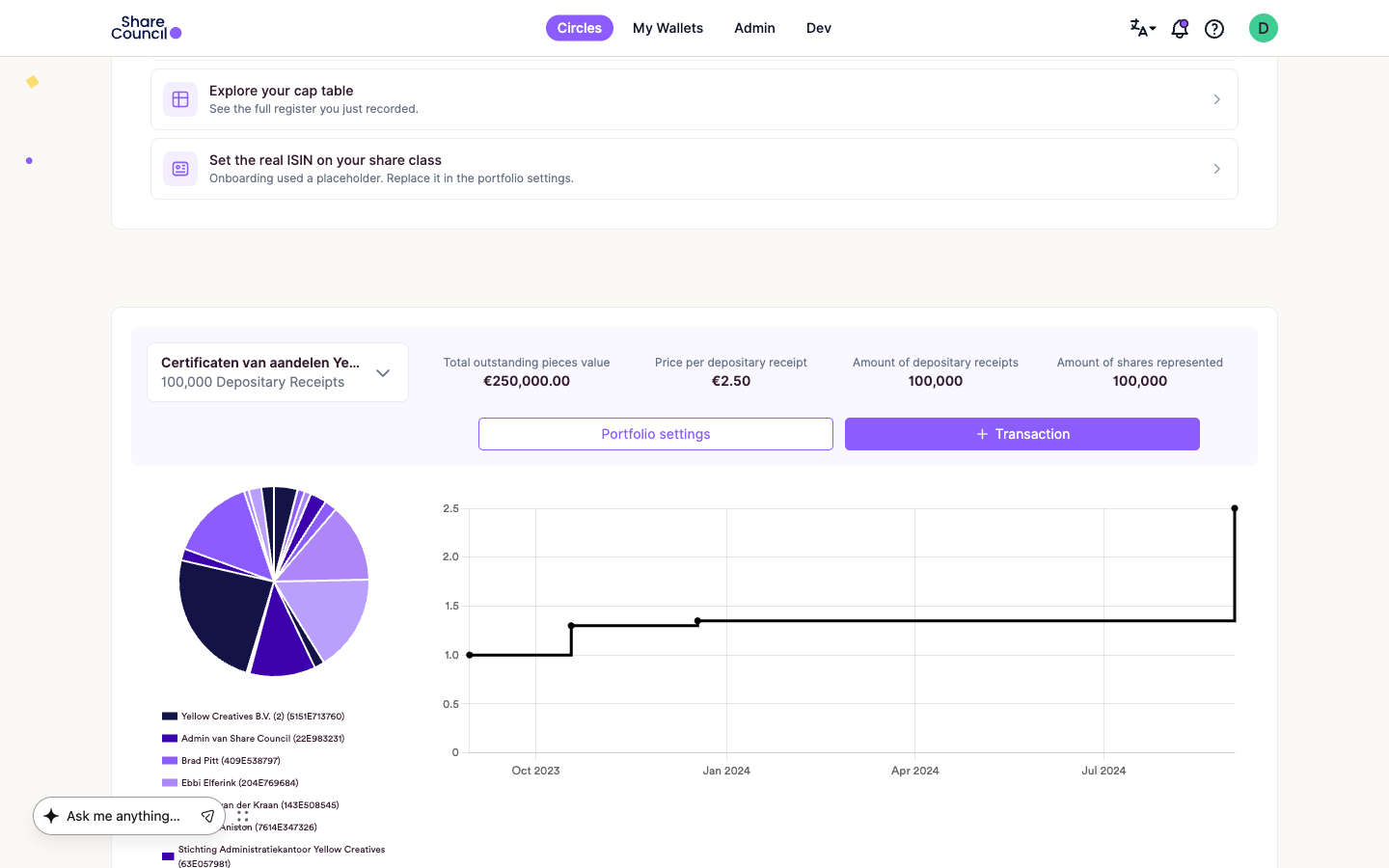
- Under Sender, pick the participant whose units go back.
- Under Recipient, pick the distributor: the company or STAK that issued the units. The form then selects the return deed Share Council set up for this portfolio, if there is one.
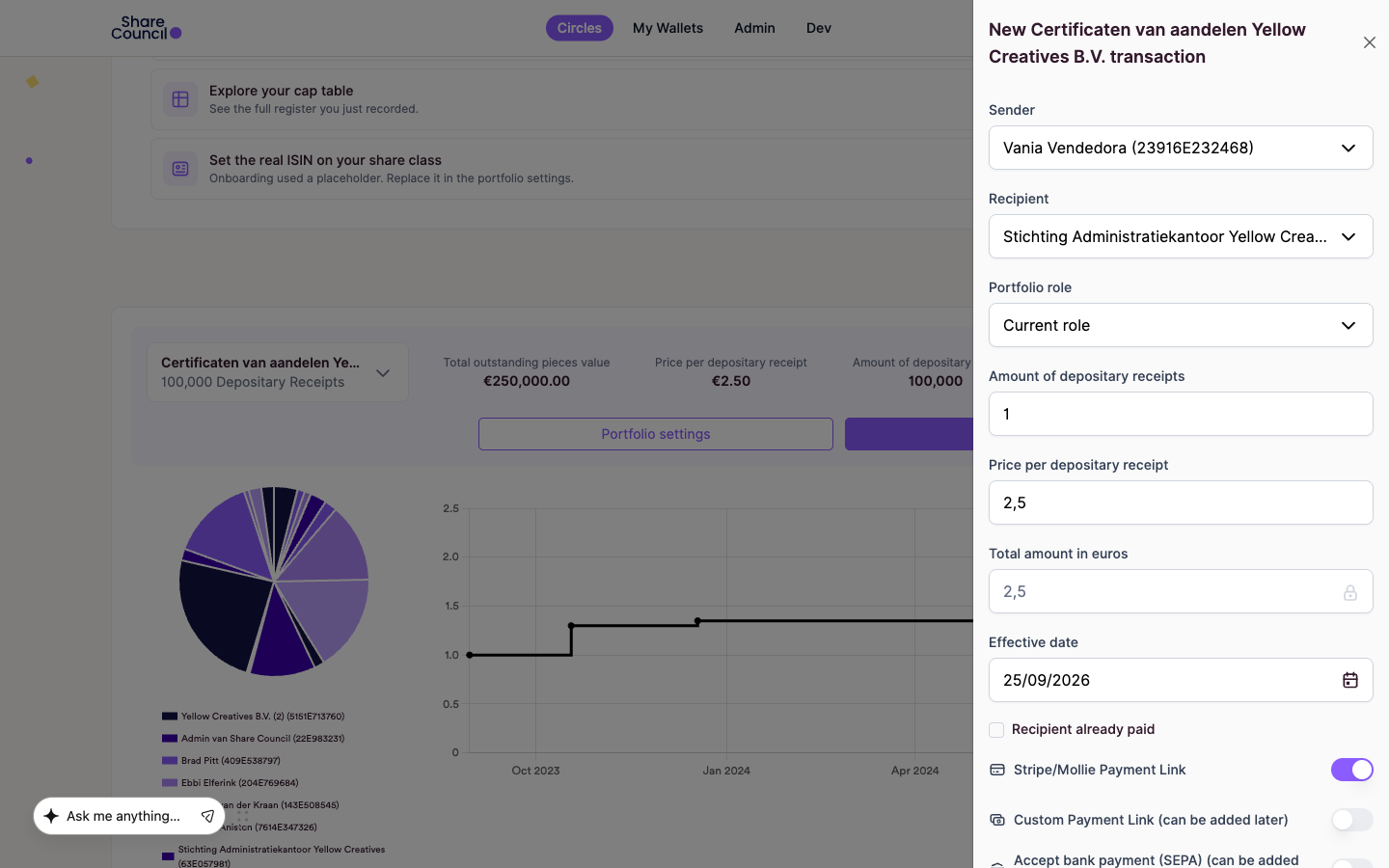
- Enter the number of units in the amount field. Its label names your instrument, for example Amount of Depositary Receipts.
- Check the price field, for example Price per Depositary Receipt. It starts at the current price per unit; change it to the agreed price if the field is editable. If nothing is due or the participant was already paid, tick Recipient already paid. Otherwise add how the distributor pays the participant: the participant's IBAN under Accept bank payment (SEPA), or a Custom Payment Link.
- Set the effective date: the date the return takes effect, for example the leaving date.
- Check the deed under Transaction Template.
- Optional: switch on Participant Auto Sign and confirm with Yes, proceed. The deed is then signed for every party when you create the transaction.
- Click Create Transaction.
What happens next
Without Participant Auto Sign, the transaction shows Awaiting signature until the participant, and any other party the deed requires, has signed. With it, all signatures are in at once. If a price is due and not yet paid, the status moves to Awaiting payment: the distributor pays the participant, and you click Mark as paid once the money has arrived. The distributor then accepts the transaction (Awaiting acceptance).
Once the distributor accepts, the units move back to the distributor and each party receives the signed deed with the "Transaction Completed" email.
Frequently asked questions
Are the units deleted from the register?
No. The units move from the participant to the distributor through a transaction. The register keeps the grant and the return, so you can always see who held what and when.
Why does the Sender list only show the company?
The Return option for Contract Enforced Transactions is off for this portfolio. Switch it on under Portfolio settings > Access and visibility, or ask Share Council to do it for you.
Can the participant hand the units back themselves?
Yes, if the portfolio allows it. With Participants may offer Depositary Receipts to the distributor (e.g. company) switched on (the label names your instrument), the participant opens My Wallets, clicks New transaction and picks the distributor as Recipient.
This article describes common practice and what the platform supports. It is not legal advice. What applies to your company is set by its articles of association, the conditions of administration and your participation plan.
Related articles
- What happens when an employee who has become a co-owner leaves the company?
- How do I offer my units back to the distributor?
- How do I stop a participant's vesting?
Last updated: 24 September 2026.