![Share-council-wit.svg]](https://sharecouncil.co/hubfs/Website/Share-council-wit.svg)
To pay a dividend to all participants in one bank batch, open the portfolio's Portfolio settings, click Dividend, enter the Date of distribution and the Total dividend (in EUR), and click Submit. When the calculation is finished, click Export SEPA file on the new row, enter your company's paying account and an execution date, and download a SEPA credit-transfer file (pain.001) to upload to your company's bank.
Before you start
- Who can do this: the Owner, an Administrator or a Portfolio Admin. A Viewer can open the tab but cannot submit.
- Plan or add-on: the Dividend add-on on a paid plan (Simple Ownership or Premium Ownership). See pricing.
- Where: your circle > the portfolio > Portfolio settings > Dividend.
- You need: the name and IBAN of the paying company account.
Steps
- On the portfolio dashboard, click Portfolio settings.
- In the left menu, click Dividend. The Dividend calculations form opens.
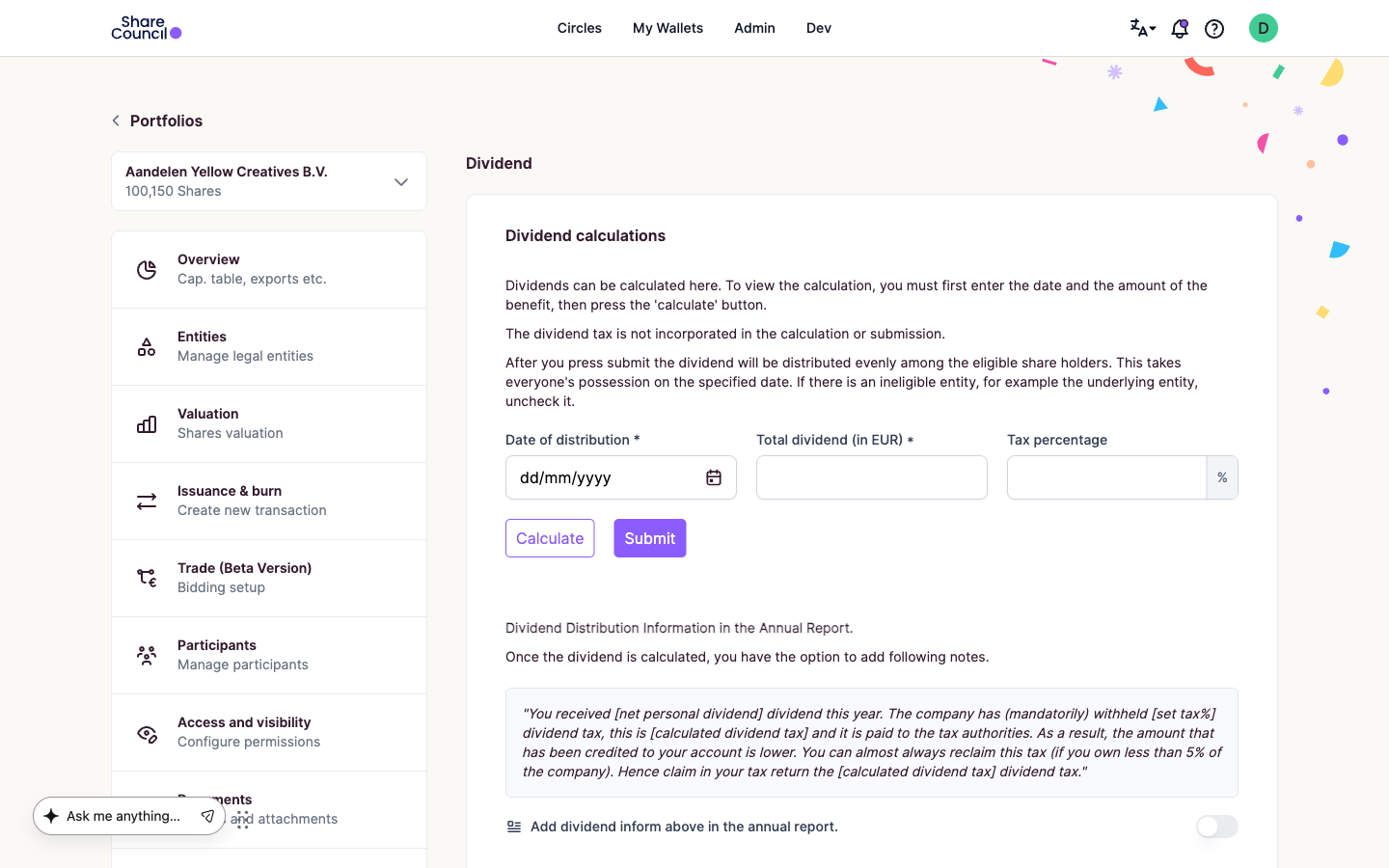
- Enter the Date of distribution and the Total dividend (in EUR). Holdings on this date decide who is paid.
- If the company withholds dividend tax, enter the Tax percentage. To add a tax note to each participant's annual report, switch on Add dividend inform above in the annual report.
- Click Calculate. A table shows each participant with Balance, Gross dividend, Dividend tax and Net dividend.
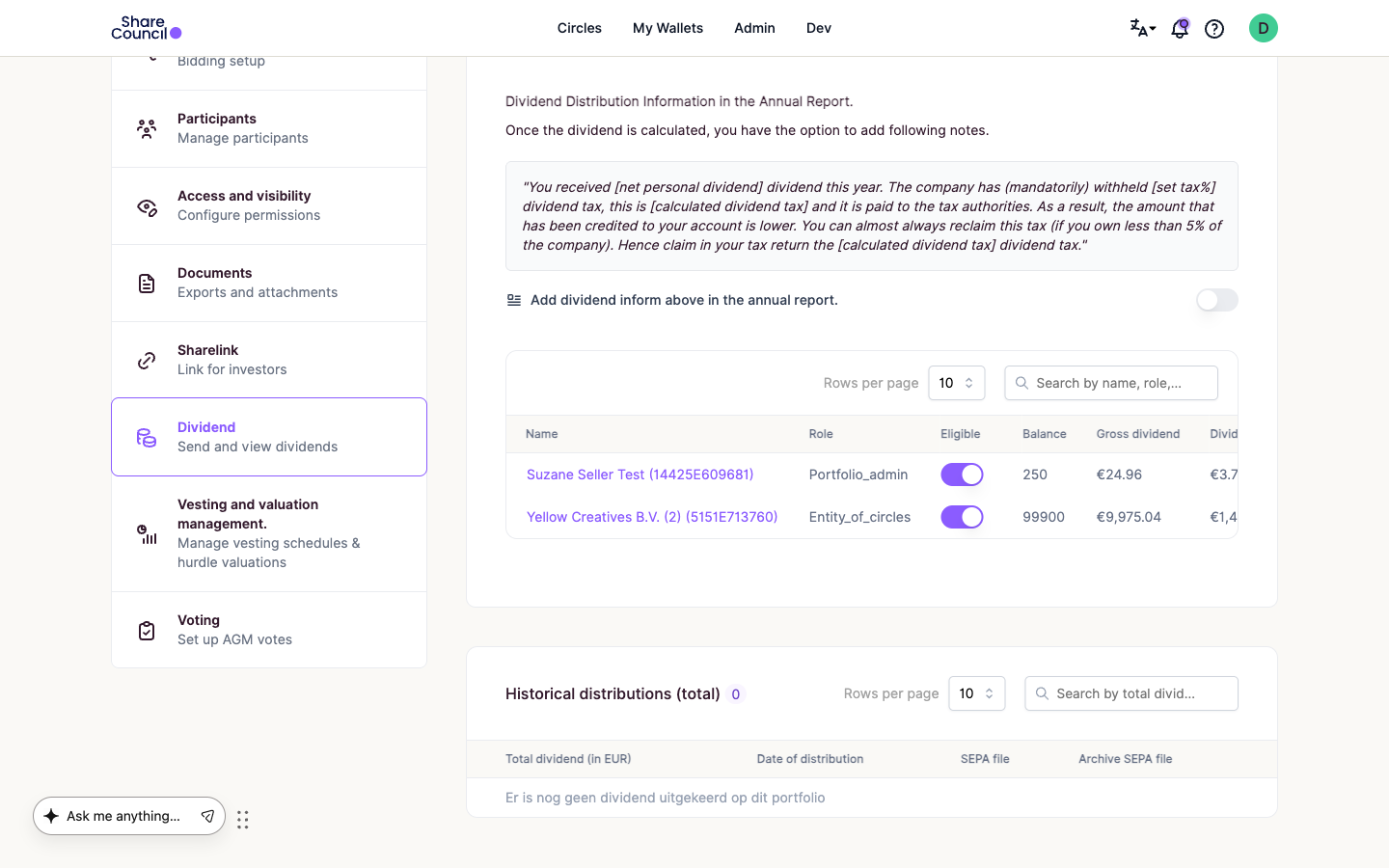
- In the Eligible column, switch off anyone who should not be paid, then click Calculate again.
- Click Submit. When the background calculation finishes, you get an email titled "Dividend Calculation Completed". Refresh the page: the event is listed under Historical distributions (total).
- Click Export SEPA file on that row. Fill in Sending account name, Sending account IBAN(No spaces) and Date of execution SEPA batch. Type a payment description in Add a message to all transactions(max. 140 characters).
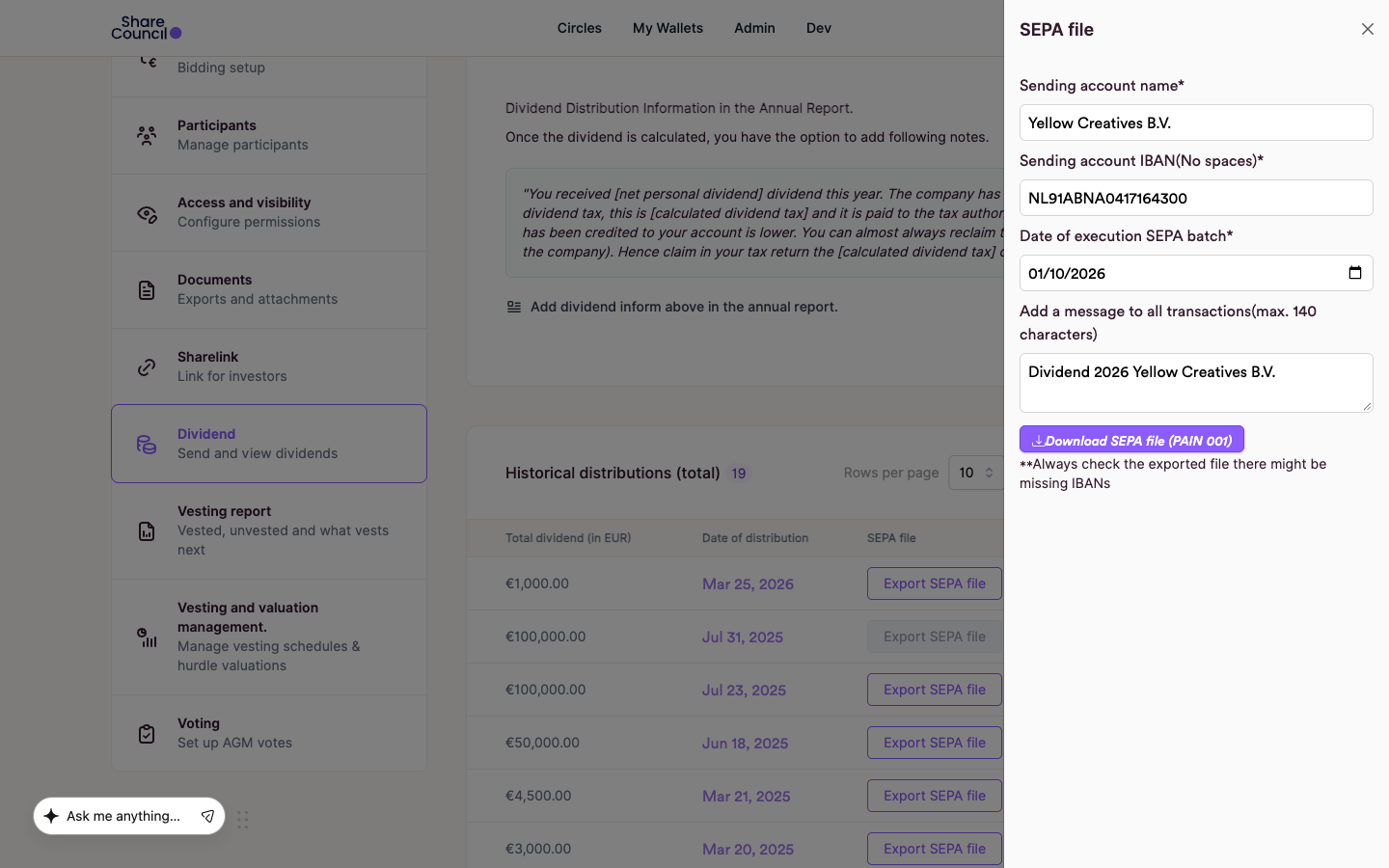
- Click Download SEPA file (PAIN 001). Check the file, then upload it in your bank's batch-payment screen.
What happens next
Your bank pays each participant the net dividend on the execution date you chose. Each payment has its own reference starting with "DIV" and the event number, so you can match every line on your statement.
For each participant, the file uses the IBAN registered in their account. If there is none, it uses the account they paid from by iDEAL in this portfolio. For a company without either, it uses the IBAN of its director on Share Council. To pay a company into its own account, make sure that IBAN is on file before you export. Anyone still without an IBAN is left out, and you receive an email titled "Missing Entries SEPA File" with an Excel list. Pay them separately.
Participants see the dividend in My wallets. They get no email about it from Share Council, so tell them yourself.
Frequently asked questions
Does Share Council pay the dividend?
No. The SEPA file is an instruction for your own bank. The money goes from your company's account to the participants.
What happens when I switch a participant off in Eligible?
They are not paid, and their share is not divided among the others, so less than the total is paid out. The switch is saved for later dividends in this portfolio. The issuing company and the distributor are never paid, even if the table lists them.
I submitted the wrong amount. How do I fix it?
Click Archive on the row. It removes the event and its payouts at once, without asking to confirm. Then run a new calculation. Archiving does not stop a file already uploaded to your bank.
Can I pay interest on bonds or loans the same way?
Yes. Bond and loan portfolios have an Interest tab. You enter an Interest rate instead of a total, and the SEPA file works the same way.
This article explains how the rules and the platform work. It is not tax advice. Share Council does not calculate, withhold or file taxes for you or your employees. Check your own situation with a tax adviser. Source: Dividendbelasting, Belastingdienst.
Related articles
- Dividends: guide to calculation and distribution
- Dividend: all your questions answered
- Pricing and add-ons
Last updated: 24 September 2026.